
Touch
Overview
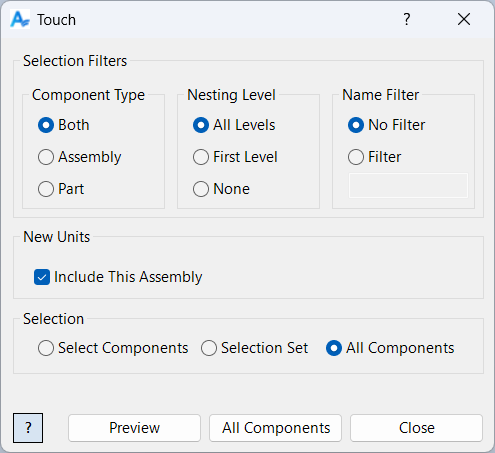
Touch marks selected component documents as modified (dirty) so Inventor treats them as needing to be saved. Optionally, it can also mark the current assembly as modified. Use it to force save prompts, ensure files are captured in downstream processes, or prepare a group of files for check-in/version control workflows.
How It Works
Touch processes component occurrences based on the selection mode (Pick, Selection Set, or All) and the common filtering options. For each selected occurrence, it marks the underlying document as dirty. If “include this assembly” is enabled, the active assembly document is also marked as dirty.
After processing, the tool selects the processed components in the selection set and displays a short summary message.
Context Menus
This command does not provide context-menu pickers. Selection is performed directly in the graphics window (Pick mode) or via selection/filter options.
Usage Instructions
- Open an assembly.
- Start Touch.
- Choose whether to include the current assembly.
- Select components using Pick, Selection Set, or All (with filters).
- Click Apply and review the summary message.
Troubleshooting
- Apply is disabled: If Selection Set mode is selected, ensure the selection set contains components.
- Files still don’t prompt to save: The document may be read-only, or another workflow may automatically suppress prompts. Verify document state and permissions.
- Nothing selected/touched: Adjust filters or selection mode so at least one component is targeted.
Examples
Example: Force a save prompt for key components
Use Pick mode to select specific components and click Apply.
Example: Touch the entire assembly plus components
Enable “include this assembly” and run the command on All components.
Example: Prepare a selection set for version control
Use Filtered Select to build the selection set, then run Touch in Selection Set mode.
Dialog Box Input
Samples
See Sample Touch for an example, and Samples Summary for where sample files are installed.
