Parameters
Overview
Parameters is a batch tool for changing, cleaning up, and auditing parameters across many components in an assembly. Use it when you need consistent parameter behavior across multiple files, when you want to mass‑update expressions or Key states, or when you need a quick report on whether a standard set of parameters exists everywhere it should.
How It Works
This command runs as a form‑based operation. You define a command (update, create, rename, delete, or report) and then choose which components to process. Components can be processed by interactive selection, the active selection set, or by processing all components filtered by type, nesting level, and optional name filtering.
For update and create operations, Parameters evaluates the expression you enter and assigns either the formula or the evaluated result depending on Assignment Mode. When working with user parameters, the selected Units value is applied and unit compatibility is enforced. When working with model parameters, Parameters requires numeric behavior and validates that the expression is appropriate for the requested assignment approach.
For rename and delete operations, Parameters looks for the requested parameter name(s) in each target component and either updates the name or removes the parameter when present. Components that do not contain a requested parameter are skipped for that parameter and recorded in the results.
For reporting operations, Parameters checks each target component and records whether each requested parameter exists. The components that match the report condition are added to the selection set at the end of the run to make review and follow‑up edits faster.
When rule suppression is enabled for update/create operations, rules are temporarily suppressed during parameter changes and then restored afterward. This helps prevent rule side‑effects while you are applying consistent parameter changes across many files.
Context Menus
The following inputs provide a right‑click context menu and a small button beside the input. Both open the same selection dialog.
- Name (parameter name list): Opens a list of parameter names. Depending on the selected command, the list may show user parameters, model parameters, or both. Select one or multiple items and click OK to insert them as a comma‑separated list.
- Expression: Opens a list of parameter names for a selected component so you can build expressions without typing. Select one or multiple items and click OK to insert them as a comma‑separated list.
- New Name: Opens a list of parameter names to help avoid mistakes when choosing an existing name to rename. Select one item and click OK to insert it into the field.
When the list depends on a specific component, you will be prompted to pick a component first. The dialog then shows the parameters available in that component. If no component is selected or available, the list will be empty until a component is picked.
Usage Instructions
- Open an assembly.
- Start Parameters.
- Select the Command you want to run.
- Enter the parameter Name. If the command supports multiple names, enter a comma‑separated list.
- If applicable, set Units, enter an Expression, and choose Expression Formula or Expression Result.
- If applicable, set Set Parameter Key and Suppress Rules.
- Choose the component selection mode and any filters, then click Preview to highlight what will be processed.
- Click All Components to run the operation (or select components when interactive selection is enabled).
Troubleshooting
- Apply is disabled: One or more required inputs are missing or invalid (for example, blank name, missing units for user parameters, or incompatible units between Units and Expression).
- Nothing happens when using Selection Set: The selection set is empty. Select components first, then retry.
- Unexpected results when formulas reference the same parameter name: Avoid circular references when using Expression Formula. Use Expression Result when you need the evaluated value assigned instead of the formula.
- Model parameter update fails: Model parameters must remain numeric. Use numeric units and a numeric expression.
- Some components are skipped: The target parameter may not exist in those components (for Update/Rename/Delete), or the component does not match your type/nesting/name filters.
Examples
Example: Update a shared user parameter across many components
Use Update User Parameter to apply a new value or formula to an existing user parameter across selected components. Components missing the parameter are reported and skipped for that parameter.
Example: Standardize a parameter set (audit)
Use Parameter Audit Report with a comma‑separated list of parameter names to quickly see which components have the full set and which ones are missing one or more.
Example: Rename a parameter safely
Use Rename Parameter and the picker beside New Name to reduce typing mistakes. Rename operates on one parameter name at a time.
Units and expressions
When setting a value or expression, units must be compatible with the final evaluated result. If your expression includes explicit units (for example, 3 ft), those units must agree with the Units selection.
Some functions require unitless inputs. For example, to use floor with an inch value and return inches:
floor(myInchParam / 1 in) * 1 in
Parameter options
- Expression Result - Evaluates the expression and assigns the resulting value.
- Expression Formula - Assigns the expression as a persistent formula.
- Set Key - Sets the Key state on or off, or leaves it unchanged.
- Suppress Rules - Temporarily prevents rules from firing while parameters are being changed, then restores rule state afterward.
Component selection
Components can be processed by picking in the graphics window, using all components, or using the current selection set. Filtering options are available as described in Filtered Select.
The Preview option highlights the components that will be processed before you run the command.
Dialog Box Input
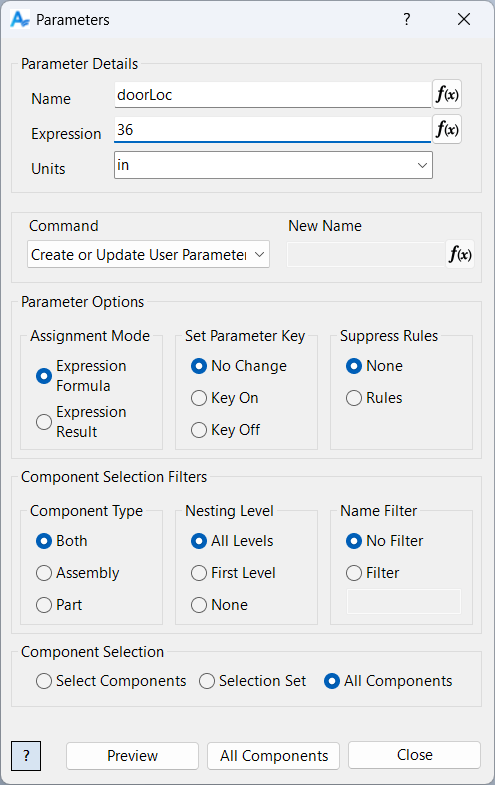
Command: Select the action to perform.
Name: Enter a name (or a comma-separated list when supported).
Units: Choose units appropriate to the desired result.
Expression: Enter a value or formula to assign.
New Name: Enter the replacement name when renaming.
Options: Configure assignment mode, Key state, and rule suppression where applicable.
Component Selection: Choose how to select and filter components.
Samples
See Sample Parameters for an example, and Samples Summary for where sample files are installed.
